> ## Documentation Index
> Fetch the complete documentation index at: https://microstrate-1133-notifications-prefs.mintlify.site/llms.txt
> Use this file to discover all available pages before exploring further.
# Collaboration
> Work together with your team on AI-powered tasks in real-time
Welcome to collaborative assistant sessions! QuivaWorks now enables seamless teamwork on AI-powered tasks in real-time. Share sessions, get live updates, and stay informed with intelligent notifications.
All existing assistant sessions remain fully functional. The new collaboration features are opt-in—start sharing whenever you're ready by typing `@`.
## Key Features at a Glance
* **Shared Sessions** — Invite team members to collaborate on assistant conversations in real-time
* **@Mentions** — Use `@` to quickly add team members to sessions
* **Smart Notifications** — Get instant alerts when teammates complete tasks or reply
* **Unread Badges** — Never miss updates with automatic count tracking
* **Shared With Me** — View all sessions shared with you, organized by participant
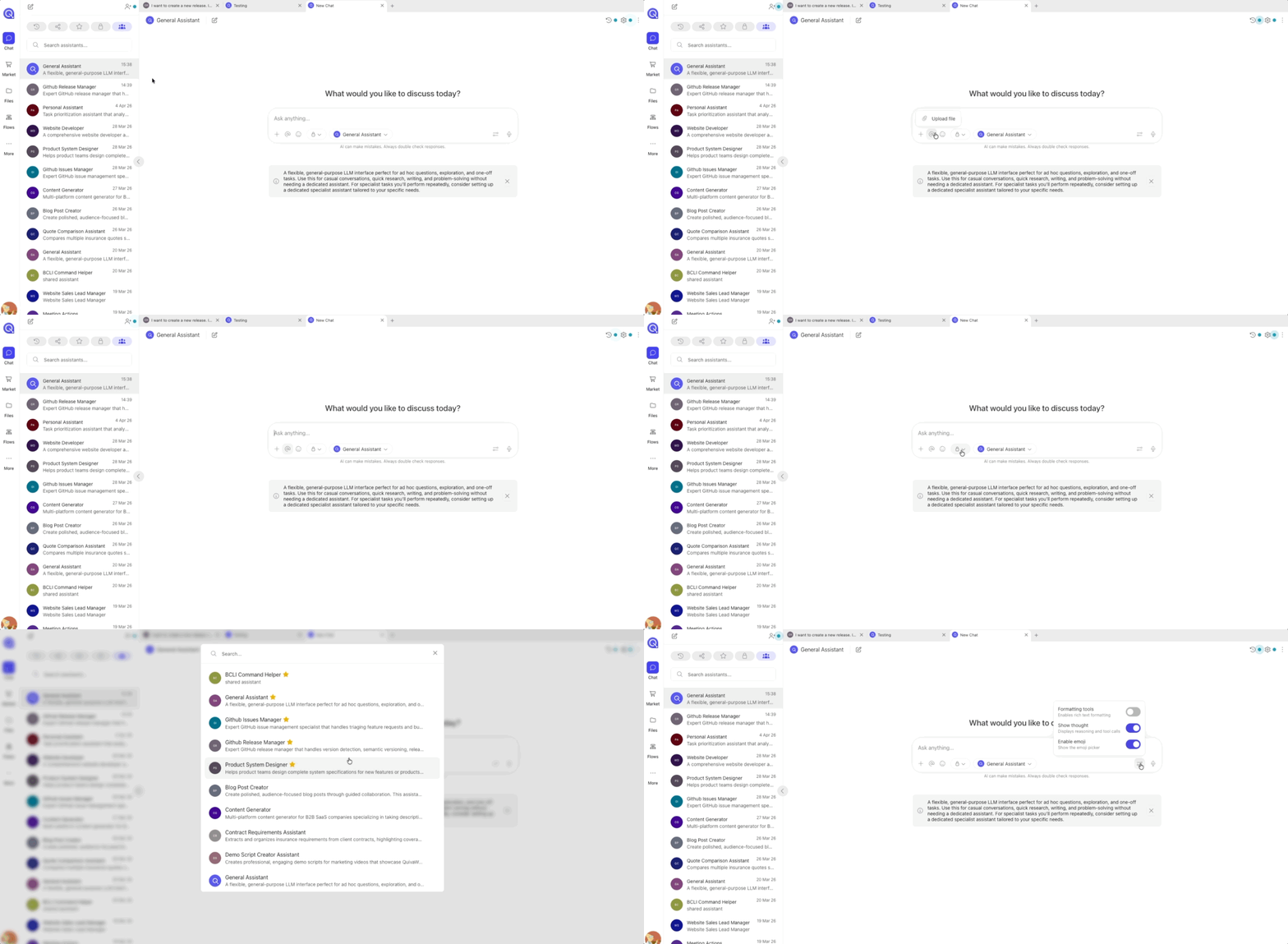
* **Redesigned Chat** — New interface with voice input, emoji support, and better formatting
## Getting Started with Collaboration
### Share Your First Session
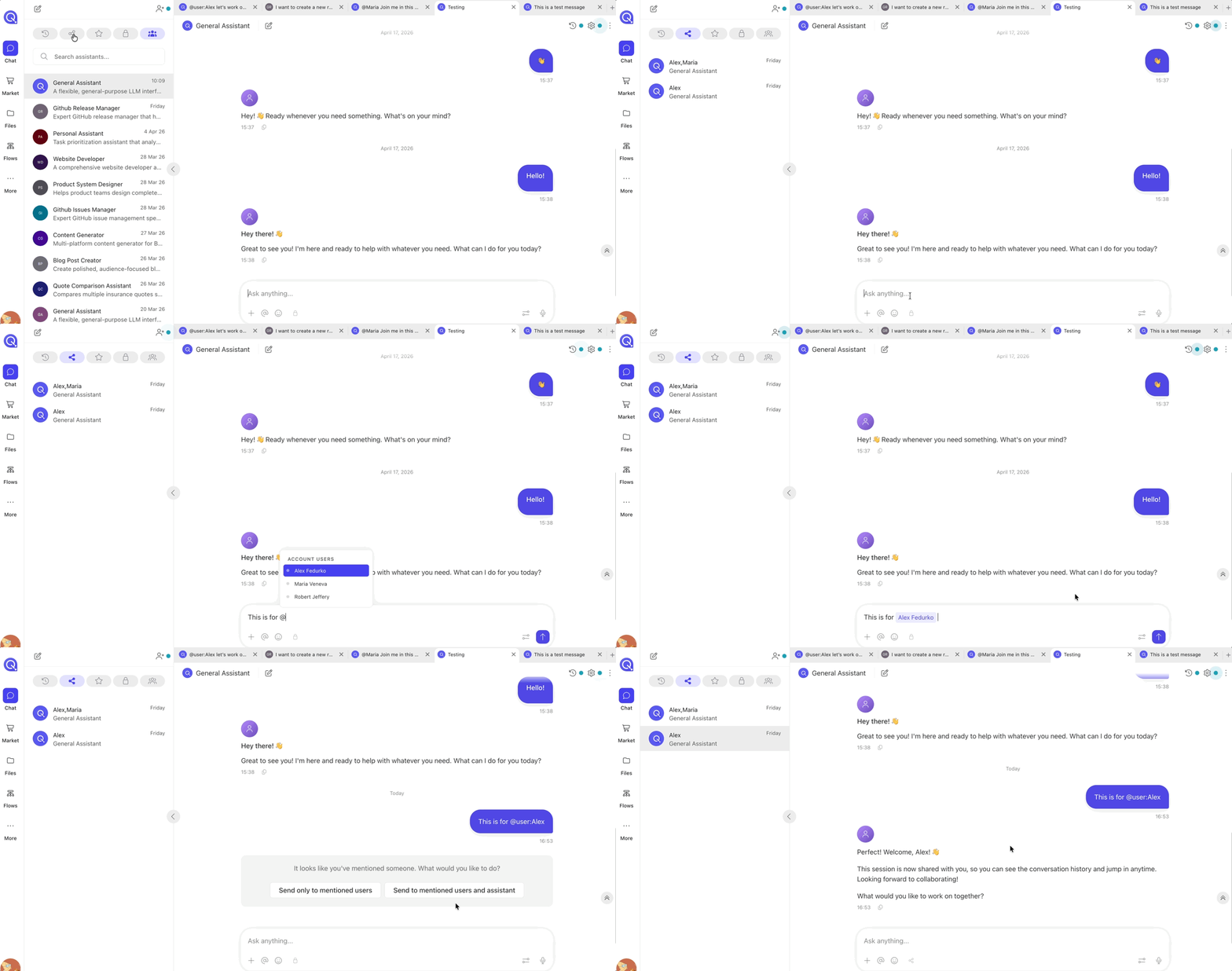
Sharing a session with your team is simple:
1. **Open an assistant session** — Start working on something with an assistant
2. **Click the `@` icon** in the chat prompt (or type `@`)
3. **Select team members** — Choose who you want to add
4. **Choose notification type** — Notify just your team, or include the AI in the mention
5. **Press Enter** — They're added instantly and notified
 ### What Happens When You Share
Once you add team members:
* ✅ **Instant access** — They can see the full conversation immediately
* ✅ **Real-time updates** — They see every new message and result as it happens
* ✅ **Notifications** — They get alerted about the shared session
* ✅ **Equal participation** — Everyone can ask follow-up questions and contribute
* ✅ **Unread tracking** — Badges show what's new
## The @Mention System
### How @Mentions Work
Use `@` to invite team members:
```
@Sarah – can you review this approach?
```
### What Happens When You Share
Once you add team members:
* ✅ **Instant access** — They can see the full conversation immediately
* ✅ **Real-time updates** — They see every new message and result as it happens
* ✅ **Notifications** — They get alerted about the shared session
* ✅ **Equal participation** — Everyone can ask follow-up questions and contribute
* ✅ **Unread tracking** — Badges show what's new
## The @Mention System
### How @Mentions Work
Use `@` to invite team members:
```
@Sarah – can you review this approach?
```
 ### AI vs. Team Notifications
When you @mention, choose your intent:
| **Scenario** | **Use** | **Example** |
| --------------- | -------------------------- | ----------------------------------- |
| Want team input | @mention team members only | `@Sarah, @Mike – thoughts on this?` |
| Want AI action | type like normal | `summarize this` |
| Regular chat | Don't use @mentions | Just type normally |
**Tip:** The system knows what the @ means in messages so may send a friendly welcome to anyone invited into the session.
### @Mention Best Practices
✅ **Do:**
* Be specific about what you need
* Include context in your mention
* Only mention relevant people
* Use for important items that need attention
❌ **Don't:**
* Mention everyone in the workspace
* Mention people for casual chat
* Use @mentions excessively
* Mention people who are inactive
## Shared With Me Section
### Finding Sessions Shared With You
A new **"Shared With Me"** section in your sidebar shows all collaborative sessions:
### AI vs. Team Notifications
When you @mention, choose your intent:
| **Scenario** | **Use** | **Example** |
| --------------- | -------------------------- | ----------------------------------- |
| Want team input | @mention team members only | `@Sarah, @Mike – thoughts on this?` |
| Want AI action | type like normal | `summarize this` |
| Regular chat | Don't use @mentions | Just type normally |
**Tip:** The system knows what the @ means in messages so may send a friendly welcome to anyone invited into the session.
### @Mention Best Practices
✅ **Do:**
* Be specific about what you need
* Include context in your mention
* Only mention relevant people
* Use for important items that need attention
❌ **Don't:**
* Mention everyone in the workspace
* Mention people for casual chat
* Use @mentions excessively
* Mention people who are inactive
## Shared With Me Section
### Finding Sessions Shared With You
A new **"Shared With Me"** section in your sidebar shows all collaborative sessions:
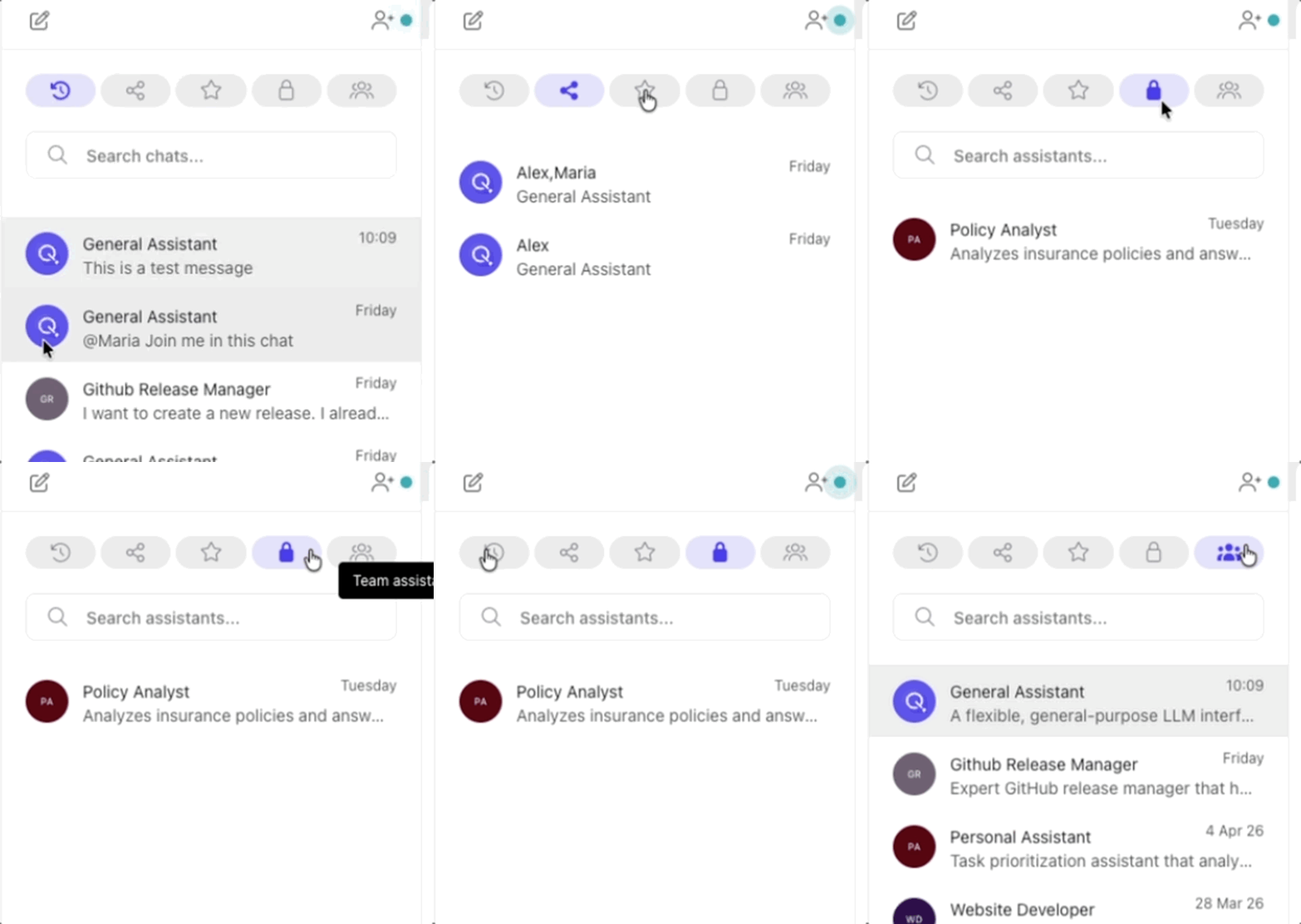 Sessions are automatically organized by:
* **Who shared them** — Grouped by teammate or team name
* **Assistant type** — Which assistant is being used
* **Activity time** — Most recent updates appear first
* **Unread status** — Badges show what's new
### What You Can Do in Shared Sessions
✅ **Full access:**
* View the complete conversation history
* Ask the assistant follow-up questions
* See real-time results and updates
* Contribute ideas and feedback
* Reply to teammates
❌ **Limitations:**
* Can't remove other members
* Can't delete the session
## Unread Badges & Smart Notifications
### Never Miss Important Updates
Unread badges automatically track what's new:
* Badges show counts (1-9+) of unread messages
* They appear next to shared sessions and groups
* Tabs also show unread indicators
* Badges clear automatically when you view new content
* Team members reply in shared sessions
* AI completes a task in a non-active session
* New session is shared with you
* Notifications include sound and visual alerts
### Real-Time Activity Updates
All session members see updates simultaneously:
* When the assistant completes a task, everyone is notified
* Unread counts automatically update
* No need to refresh — everything appears in real-time
* Session activity is visible to all collaborators
## Common Workflows
### Brainstorming with Your Team
1. Start a session with an assistant
2. Ask an initial question
3. @mention relevant teammates
4. All members contribute ideas in real-time
5. The AI helps synthesize and expand ideas
**Best for:** Creative ideation, problem-solving
### Code Review with AI
1. Share your code with the assistant
2. Ask for a review
3. @mention senior developers
4. Each reviewer sees the AI's analysis
5. Collect all feedback in one place
**Best for:** Quality assurance, code improvements
### Delegated Analysis
1. Create a session with the AI
2. Ask for analysis or reporting
3. @mention decision-makers
4. They see results as they're generated
5. They can request changes without context switching
**Best for:** Reports, data analysis, research
### Team Knowledge Capture
1. Experts collaborate with the AI on a topic
2. @mention team members who need to learn
3. The AI generates training materials in real-time
4. Teammates ask clarifying questions
5. Full conversation becomes a knowledge resource
**Best for:** Documentation, training, knowledge base
## Assistant Improvements in v1.2.0
Your assistants are now smarter and more efficient:
Plan selection now works flawlessly on mobile devices. The interface adapts to smaller screens, making AI-powered work accessible on the go.
Assistants execute complex API requests with greater reliability. Special numeric formats are handled correctly, and request processing is improved.
Your assistants now default to fast, efficient processing modes without sacrificing quality. Sub-agents operate with optimized settings for quicker responses.
Assistants better understand and apply context from tools and shared knowledge, leading to more relevant and accurate responses across your workflows.
## Additional Improvements
Updated color schemes throughout the interface for better dark mode support and reduced eye strain during extended use.
Improved tab switching and session loading for a snappier, more responsive experience with multiple conversations.
Enhanced rendering with better formatting support, improved planning visualization, and cleaner message layout.
New notification audio and visual indicators alert you when team members update shared sessions or complete important tasks.
Email-triggered workflows now handle file attachments more reliably, preserving file information for better knowledge management.
## Next Steps
Ready to collaborate? Here's how to get started:
Open any assistant session and use @ to invite your first teammate
Check out the new Shared With Me section to see sessions with your team
Connect with other users and share collaboration tips
Questions? Reach out to our support team
***
## Collaboration Tips & Tricks
### Keep Sessions Organized
* **Be descriptive** — Name sessions clearly (e.g., "Q3 Budget Review – Finance Team")
* **Keep it focused** — One topic per session
* **Ideal size** — 2-5 people for best collaboration
### Maximize Notifications
* **Review badges regularly** — Don't let updates pile up
* **Check Shared With Me** — Browse sessions once per hour instead
### Respect Team Dynamics
* **Be clear about intent** — Explain why you're @mentioning someone
* **Provide context** — Don't assume people have background info
* **Respect async work** — Allow time for responses, don't expect immediate replies
* **Document decisions** — Summarize what you decided in the session
### When Collaboration Works Best
✅ Quick decisions\
✅ Complex problems needing multiple perspectives\
✅ Code reviews and quality checks\
✅ Real-time brainstorming\
✅ Project planning and kickoffs
***
## Frequently Asked Questions
No. Removing people from a shared session isn't supported at this time. If you need this, please let us know!
Currently you will not get notifications if you don't have QuivaWorks open in your browser. When you log back in, you will see all your unread notifications.
The system tracks whether team members have seen new messages, which is shown through unread badges. Specific read receipts per message aren't currently available.
Yes, all messages in shared sessions count toward your plan limits. Collaborate efficiently to maximize your usage!
Not currently. Team members must be active users in your QuivaWorks workspace to be @mentioned and added to sessions.
There's no hard limit, but we recommend 2-5 people for the best collaborative experience. Larger groups may want to split into separate sessions with summaries shared afterwards.
***
**Ready to collaborate?** Open an assistant session, click `@`, and invite your first teammate today. The future of AI-powered teamwork starts here.
Sessions are automatically organized by:
* **Who shared them** — Grouped by teammate or team name
* **Assistant type** — Which assistant is being used
* **Activity time** — Most recent updates appear first
* **Unread status** — Badges show what's new
### What You Can Do in Shared Sessions
✅ **Full access:**
* View the complete conversation history
* Ask the assistant follow-up questions
* See real-time results and updates
* Contribute ideas and feedback
* Reply to teammates
❌ **Limitations:**
* Can't remove other members
* Can't delete the session
## Unread Badges & Smart Notifications
### Never Miss Important Updates
Unread badges automatically track what's new:
* Badges show counts (1-9+) of unread messages
* They appear next to shared sessions and groups
* Tabs also show unread indicators
* Badges clear automatically when you view new content
* Team members reply in shared sessions
* AI completes a task in a non-active session
* New session is shared with you
* Notifications include sound and visual alerts
### Real-Time Activity Updates
All session members see updates simultaneously:
* When the assistant completes a task, everyone is notified
* Unread counts automatically update
* No need to refresh — everything appears in real-time
* Session activity is visible to all collaborators
## Common Workflows
### Brainstorming with Your Team
1. Start a session with an assistant
2. Ask an initial question
3. @mention relevant teammates
4. All members contribute ideas in real-time
5. The AI helps synthesize and expand ideas
**Best for:** Creative ideation, problem-solving
### Code Review with AI
1. Share your code with the assistant
2. Ask for a review
3. @mention senior developers
4. Each reviewer sees the AI's analysis
5. Collect all feedback in one place
**Best for:** Quality assurance, code improvements
### Delegated Analysis
1. Create a session with the AI
2. Ask for analysis or reporting
3. @mention decision-makers
4. They see results as they're generated
5. They can request changes without context switching
**Best for:** Reports, data analysis, research
### Team Knowledge Capture
1. Experts collaborate with the AI on a topic
2. @mention team members who need to learn
3. The AI generates training materials in real-time
4. Teammates ask clarifying questions
5. Full conversation becomes a knowledge resource
**Best for:** Documentation, training, knowledge base
## Assistant Improvements in v1.2.0
Your assistants are now smarter and more efficient:
Plan selection now works flawlessly on mobile devices. The interface adapts to smaller screens, making AI-powered work accessible on the go.
Assistants execute complex API requests with greater reliability. Special numeric formats are handled correctly, and request processing is improved.
Your assistants now default to fast, efficient processing modes without sacrificing quality. Sub-agents operate with optimized settings for quicker responses.
Assistants better understand and apply context from tools and shared knowledge, leading to more relevant and accurate responses across your workflows.
## Additional Improvements
Updated color schemes throughout the interface for better dark mode support and reduced eye strain during extended use.
Improved tab switching and session loading for a snappier, more responsive experience with multiple conversations.
Enhanced rendering with better formatting support, improved planning visualization, and cleaner message layout.
New notification audio and visual indicators alert you when team members update shared sessions or complete important tasks.
Email-triggered workflows now handle file attachments more reliably, preserving file information for better knowledge management.
## Next Steps
Ready to collaborate? Here's how to get started:
Open any assistant session and use @ to invite your first teammate
Check out the new Shared With Me section to see sessions with your team
Connect with other users and share collaboration tips
Questions? Reach out to our support team
***
## Collaboration Tips & Tricks
### Keep Sessions Organized
* **Be descriptive** — Name sessions clearly (e.g., "Q3 Budget Review – Finance Team")
* **Keep it focused** — One topic per session
* **Ideal size** — 2-5 people for best collaboration
### Maximize Notifications
* **Review badges regularly** — Don't let updates pile up
* **Check Shared With Me** — Browse sessions once per hour instead
### Respect Team Dynamics
* **Be clear about intent** — Explain why you're @mentioning someone
* **Provide context** — Don't assume people have background info
* **Respect async work** — Allow time for responses, don't expect immediate replies
* **Document decisions** — Summarize what you decided in the session
### When Collaboration Works Best
✅ Quick decisions\
✅ Complex problems needing multiple perspectives\
✅ Code reviews and quality checks\
✅ Real-time brainstorming\
✅ Project planning and kickoffs
***
## Frequently Asked Questions
No. Removing people from a shared session isn't supported at this time. If you need this, please let us know!
Currently you will not get notifications if you don't have QuivaWorks open in your browser. When you log back in, you will see all your unread notifications.
The system tracks whether team members have seen new messages, which is shown through unread badges. Specific read receipts per message aren't currently available.
Yes, all messages in shared sessions count toward your plan limits. Collaborate efficiently to maximize your usage!
Not currently. Team members must be active users in your QuivaWorks workspace to be @mentioned and added to sessions.
There's no hard limit, but we recommend 2-5 people for the best collaborative experience. Larger groups may want to split into separate sessions with summaries shared afterwards.
***
**Ready to collaborate?** Open an assistant session, click `@`, and invite your first teammate today. The future of AI-powered teamwork starts here.