> ## Documentation Index
> Fetch the complete documentation index at: https://microstrate-1133-notifications-prefs.mintlify.site/llms.txt
> Use this file to discover all available pages before exploring further.
# Deploying Interactive Web Apps
> Take your interactive HTML applications live with a single request—no technical expertise needed.
Turn your AI-generated interactive web applications into live, shareable websites. Deploy with one simple request and get a public URL instantly.
Deployment is necessary when your HTML application includes JavaScript interactions that don't fully work in the preview. Once deployed, everything functions perfectly and is accessible from anywhere.
## When to Deploy
You should deploy your application when:
* **JavaScript interactions aren't working in preview** — Buttons, forms, calculations, or other interactive features need deployment to function fully
* **You need a shareable URL** — You want to send the app to clients, colleagues, or customers
* **You want a mobile-friendly experience** — Accessed from various devices with full functionality
* **You're building customer-facing tools** — Calculators, dashboards, configurators, or interactive experiences
Static content (no JavaScript) works fine in the preview and doesn't require deployment.
***
## Deployment Process
### Request Deployment
Tell your assistant you're ready to go live:
> "Deploy this as a live web app"
>
> "Make this interactive calculator live and shareable"
>
> "Deploy and give me a public URL for this app"
The assistant handles everything else.
### What Happens Behind the Scenes
1. **Gateway Creation** — QuivaWorks creates a website gateway for your app
2. **File Upload** — Your HTML, CSS, and JavaScript files are uploaded to secure object storage
3. **URL Generation** — A public URL is created and provided to you
4. **Activation** — Your app is live and accessible immediately
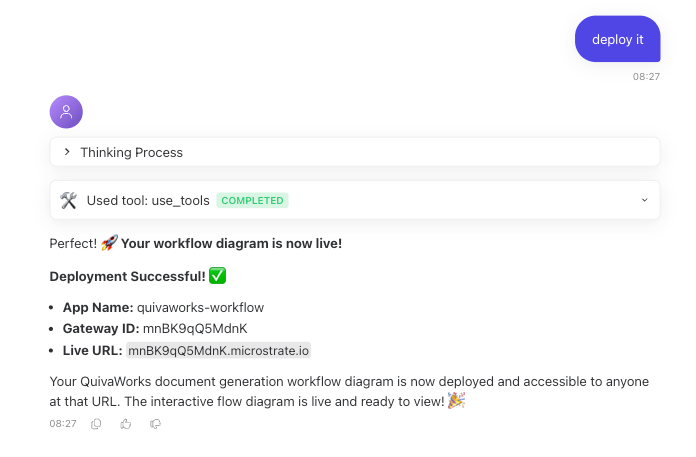 ### Receiving Your Public URL
After deployment, you'll receive a unique public URL like:
https\://\[unique-id].quiva.ai
This URL:
* ✅ Works on any device (desktop, tablet, mobile)
* ✅ Can be shared with anyone (no login required)
* ✅ Supports full JavaScript functionality
* ✅ Remains accessible indefinitely
* ✅ Can be embedded in emails or documents
***
## Sharing & Using Deployed Apps
### Share Your App
Once you have your public URL, you can:
1. **Send the link directly** to individuals or teams
2. **Post on social media** or your website
3. **Embed in documents** or presentations
4. **Include in email campaigns** or newsletters
5. **Integrate with other tools** that accept web links
### Access Deployed Apps
Anyone with the link can open your app in a web browser. No login, no installation, no special software required.
### Common Deployment Use Cases
**Interactive Calculators**
Mortgage calculators, pricing tools, ROI estimators, and cost breakdowns.
**Customer Dashboards**
Real-time metrics displays, analytics visualizations, and data summaries.
**Feedback & Survey Forms**
Collect feedback, run surveys, or gather information from customers.
**Interactive Portfolios**
Showcase your work with interactive projects, galleries, and case studies.
**Product Configurators**
Let customers customise products and see options dynamically update.
**Educational Tools**
Interactive tutorials, quizzes, learning games, and educational apps.
***
## Managing Deployed Apps
### Updating Your Application
If you need to make changes to a deployed app:
1. **Generate a new version** — Ask the assistant to create an updated version of your application
2. **Deploy again** — Request deployment of the updated app
3. **Your existing URL is updated** — You don't need a new public link for the updated version
Each deployment uses the same URL. If you require a new URL you can ask the assistant to deploy it again with a new URL/Gateway.
### Removing Access
To stop sharing a deployed app:
* **Stop sharing the URL** — Simply don't share it further
* **Communicate updates** — Notify people who have the link if it's no longer available
* **Generate a new version** — Create a new app with fresh functionality
* **Delete the existing app** - Navigate to your apps, and click the "delete" button for the app you want to remove
***
## Troubleshooting Deployments
Ask your assistant to review the app and make corrections. Then request redeployment. The assistant can debug issues and ensure the updated version works perfectly before deploying.
Yes, you can deploy updated versions as many times as needed. If you need to create a new URL, so previous versions can remain live or be retired, just ask the assistant.
Deployed applications remain live indefinitely. They stay accessible as long as they're hosted in QuivaWorks object storage on available on your QuivaWorks gateway.
No, deployed apps are read-only for visitors. Only you (through your assistant) can generate new versions and deploy updates. Visitors can interact with the app but cannot modify it.
The public URLs provided by QuivaWorks work reliably. For custom domains, get in touch with us to ask about additional options.
Yes, apps are deployed through QuivaWorks infrastructure with standard web security practices. They're accessible via public URLs but hosted securely.
Through the public URL, apps are openly accessible. For detailed analytics or usage tracking, you'd need to integrate additional tools or ask your assistant about monitoring options.
***
## Next Steps
Ask your assistant to create an interactive web application. Be specific about functionality, design, and purpose.
Review the generated app in the UI. Test all interactive features and request modifications if needed.
Once satisfied, request deployment. Your assistant will handle gateway creation and provide your public URL.
Share your public URL with colleagues, clients, customers, or the world. Your app is now live and accessible.
**Ready to Deploy?** When your interactive app is ready, simply ask your assistant to deploy it. You'll have a live, shareable web application within moments—no technical expertise required.
### Receiving Your Public URL
After deployment, you'll receive a unique public URL like:
https\://\[unique-id].quiva.ai
This URL:
* ✅ Works on any device (desktop, tablet, mobile)
* ✅ Can be shared with anyone (no login required)
* ✅ Supports full JavaScript functionality
* ✅ Remains accessible indefinitely
* ✅ Can be embedded in emails or documents
***
## Sharing & Using Deployed Apps
### Share Your App
Once you have your public URL, you can:
1. **Send the link directly** to individuals or teams
2. **Post on social media** or your website
3. **Embed in documents** or presentations
4. **Include in email campaigns** or newsletters
5. **Integrate with other tools** that accept web links
### Access Deployed Apps
Anyone with the link can open your app in a web browser. No login, no installation, no special software required.
### Common Deployment Use Cases
**Interactive Calculators**
Mortgage calculators, pricing tools, ROI estimators, and cost breakdowns.
**Customer Dashboards**
Real-time metrics displays, analytics visualizations, and data summaries.
**Feedback & Survey Forms**
Collect feedback, run surveys, or gather information from customers.
**Interactive Portfolios**
Showcase your work with interactive projects, galleries, and case studies.
**Product Configurators**
Let customers customise products and see options dynamically update.
**Educational Tools**
Interactive tutorials, quizzes, learning games, and educational apps.
***
## Managing Deployed Apps
### Updating Your Application
If you need to make changes to a deployed app:
1. **Generate a new version** — Ask the assistant to create an updated version of your application
2. **Deploy again** — Request deployment of the updated app
3. **Your existing URL is updated** — You don't need a new public link for the updated version
Each deployment uses the same URL. If you require a new URL you can ask the assistant to deploy it again with a new URL/Gateway.
### Removing Access
To stop sharing a deployed app:
* **Stop sharing the URL** — Simply don't share it further
* **Communicate updates** — Notify people who have the link if it's no longer available
* **Generate a new version** — Create a new app with fresh functionality
* **Delete the existing app** - Navigate to your apps, and click the "delete" button for the app you want to remove
***
## Troubleshooting Deployments
Ask your assistant to review the app and make corrections. Then request redeployment. The assistant can debug issues and ensure the updated version works perfectly before deploying.
Yes, you can deploy updated versions as many times as needed. If you need to create a new URL, so previous versions can remain live or be retired, just ask the assistant.
Deployed applications remain live indefinitely. They stay accessible as long as they're hosted in QuivaWorks object storage on available on your QuivaWorks gateway.
No, deployed apps are read-only for visitors. Only you (through your assistant) can generate new versions and deploy updates. Visitors can interact with the app but cannot modify it.
The public URLs provided by QuivaWorks work reliably. For custom domains, get in touch with us to ask about additional options.
Yes, apps are deployed through QuivaWorks infrastructure with standard web security practices. They're accessible via public URLs but hosted securely.
Through the public URL, apps are openly accessible. For detailed analytics or usage tracking, you'd need to integrate additional tools or ask your assistant about monitoring options.
***
## Next Steps
Ask your assistant to create an interactive web application. Be specific about functionality, design, and purpose.
Review the generated app in the UI. Test all interactive features and request modifications if needed.
Once satisfied, request deployment. Your assistant will handle gateway creation and provide your public URL.
Share your public URL with colleagues, clients, customers, or the world. Your app is now live and accessible.
**Ready to Deploy?** When your interactive app is ready, simply ask your assistant to deploy it. You'll have a live, shareable web application within moments—no technical expertise required.