> ## Documentation Index
> Fetch the complete documentation index at: https://microstrate-1133-notifications-prefs.mintlify.site/llms.txt
> Use this file to discover all available pages before exploring further.
# Document Generation
> Create professional documents, presentations, and interactive web applications by describing what you need to the AI assistant.
Generate any document you can imagine—from polished reports and presentations to interactive web applications—simply by describing what you need. Your AI assistant handles the creation, letting you focus on refining the output to perfection.
You can configure global instructions including brand guidelines in your account settings so generated documents can conform to your branding. [Explore global instructions in detail →](/essentials/account/global-instructions).
## Key Features at a Glance
**Multiple Format Support** — Create PDFs, Word documents, PowerPoint presentations, spreadsheets, SVG diagrams, and interactive HTML/web applications.
**AI-Powered Creation** — Simply describe what you need, and the assistant generates the complete document from scratch.
**Real-Time Editing** — Preview your document in the UI and make instant modifications or request specific changes.
**Interactive Diagrams** — Embed Mermaid diagrams directly into your documents for flowcharts, timelines, and visualisations.
**Professional Customisation** — Apply themes to presentations, adjust styling, and fine-tune layouts before finalising.
**Deploy to the Web** — Take interactive HTML applications live with a single request—no deployment expertise required.
***
## Getting Started with Document Generation
### Your First Document
Creating a document is straightforward. Simply tell your assistant what you need, and it will generate a complete, ready-to-use file.
1. **Open chats** and start a conversation with your AI assistant
2. **Describe your document** — Be specific about format, content, and style
* Example: "Create a professional 3-page report on Q1 sales performance with charts and company branding"
* Example: "Generate a 10-slide presentation on climate change with a modern blue theme"
* Example: "Build an interactive dashboard that shows real-time metrics with charts"
3. **Review the preview** in the UI to see the generated document before downloading or making changes
4. **Request modifications** if needed—tell the assistant what to adjust and it will update the document instantly
5. **Download or deploy** your finished document
The more specific you are in your description, the better the result. Include details about tone, audience, specific data points, visual style, and any branding guidelines.
***
## Available Document Formats
### Professional Documents
**PDF Reports & Documents**
Perfect for polished, print-ready documents that maintain consistent formatting across devices. Ideal for reports, whitepapers, proposals, and formal communications.
**Word Documents (.docx)**
Create editable Word documents that teams can collaborate on after generation. Great for contracts, proposals, and any document your team needs to modify.
### Presentations & Data
**PowerPoint Presentations**
Generate complete slide decks with multiple layouts, custom themes, and professional designs. The assistant can add themes automatically to enhance visual appeal.
**Spreadsheets**
Create Excel spreadsheets with data, formulas, formatting, and multiple sheets. Perfect for data summaries, financial reports, and analysis documents.
### Visualisations
**Diagrams & Flowcharts (Mermaid)**
Embed interactive diagrams directly into your documents—flowcharts, timelines, entity relationships, user journeys, and more. Mermaid diagrams render beautifully in all formats.
**SVG Graphics**
Generate scalable vector graphics that look perfect at any size. Use for logos, icons, technical diagrams, and custom illustrations.
### Interactive Web Apps
**HTML & Web Applications**
Create fully functional, interactive web applications with JavaScript, CSS styling, and responsive design. These can be previewed in the UI and deployed live on the internet.
***
## Document Generation Workflows
### Creating & Refining Documents
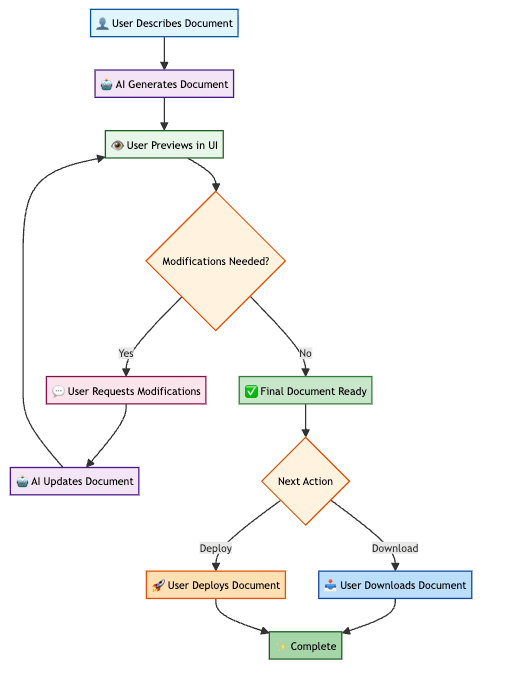
The generation process is iterative. You can refine your document as many times as needed:
1. **Generate** — Describe what you need and the assistant creates it
2. **Preview** — View the document directly in the UI
3. **Modify** — Point out what should change (layout, content, colours, etc.)
4. **Regenerate** — The assistant updates the document with your changes
5. **Download or Deploy** — Once satisfied, download or take it live
 ### Embedding Images & Graphics
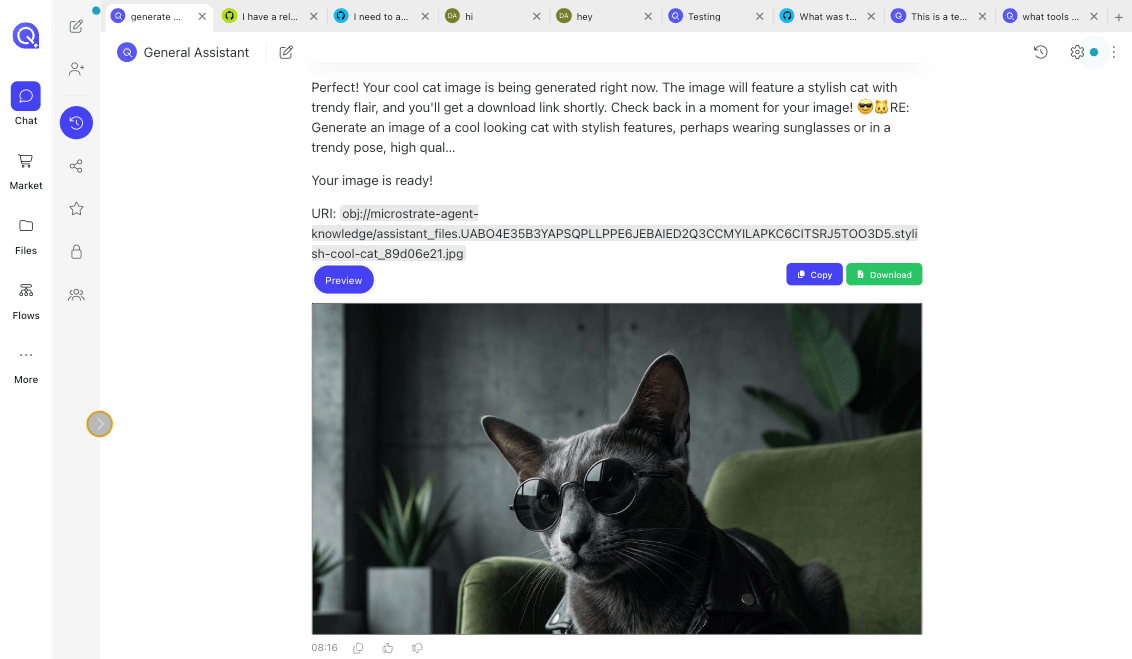
When you ask the assistant to generate documents with images, it can:
* **Generate images from text descriptions** using AI image generation
* **Embed existing images** you reference in your document
* **Create diagrams and flowcharts** using Mermaid syntax
* **Design custom graphics** like logos, banners, and illustrations
Simply mention the images or graphics you want, and the assistant handles the creation and embedding.
Image generation costs 7 credits and uses Nano Banana Pro
### Embedding Images & Graphics
When you ask the assistant to generate documents with images, it can:
* **Generate images from text descriptions** using AI image generation
* **Embed existing images** you reference in your document
* **Create diagrams and flowcharts** using Mermaid syntax
* **Design custom graphics** like logos, banners, and illustrations
Simply mention the images or graphics you want, and the assistant handles the creation and embedding.
Image generation costs 7 credits and uses Nano Banana Pro
 ### Customising Presentations
For PowerPoint presentations, you can request:
* **Themes & Colour Schemes** — "Apply a modern blue theme" or "Use our company branding colours"
* **Layout Variations** — "Title slide, then 5 content slides with left-aligned text and right-side images"
* **Design Elements** — "Add company logo to footer" or "Include page numbers"
* **Animation & Transitions** — "Add subtle transitions between slides"
***
## Interactive HTML & Web Applications
### Generating Web Apps
The assistant can create fully functional web applications with:
* **Interactive Components** — Forms, buttons, dropdowns, navigation
* **Styling & Themes** — Responsive design that works on mobile and desktop
* **JavaScript Functionality** — Dynamic interactions, calculations, data processing
* **Visualisations** — Charts, graphs, and real-time data displays
Simply describe the web app you need: "Create an interactive calculator for mortgage payments with a clean, modern interface" or "Build a simple to-do app with add, edit, and delete functionality."
### Previewing Interactive Content
Generated HTML applications display directly in the UI. However, JavaScript functionality may be restricted in the preview due to browser security policies. This is where deployment comes in.
**About JavaScript Restrictions:** Some interactive features may not work in the preview due to browser content security policies. This is normal and expected—deployment enables full functionality.
***
## Deploying to the Web
### Making Your App Live
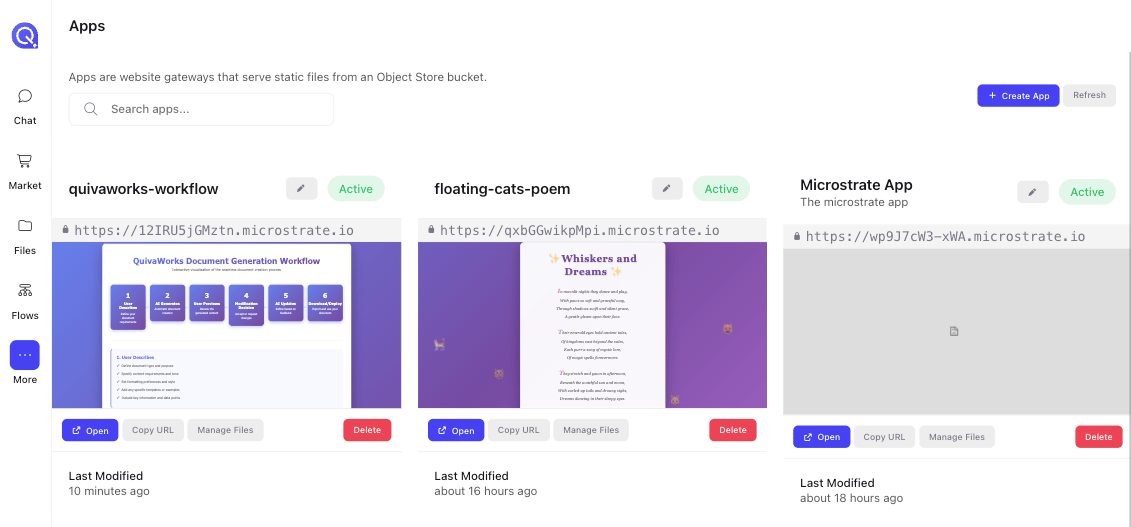
When you have an interactive HTML application ready, you can deploy it to make it fully functional and accessible from anywhere on the internet.
**How Deployment Works:**
1. **Request Deployment** — Tell your assistant: "Deploy this as a live web app"
2. **Gateway Creation** — The assistant creates a website gateway in QuivaWorks
3. **Resource Upload** — HTML, CSS, and JavaScript files are uploaded to object storage
4. **Public URL** — You receive a shareable public link to your live application
5. **Live & Accessible** — Your app is now accessible from anywhere, with full JavaScript functionality enabled
### Customising Presentations
For PowerPoint presentations, you can request:
* **Themes & Colour Schemes** — "Apply a modern blue theme" or "Use our company branding colours"
* **Layout Variations** — "Title slide, then 5 content slides with left-aligned text and right-side images"
* **Design Elements** — "Add company logo to footer" or "Include page numbers"
* **Animation & Transitions** — "Add subtle transitions between slides"
***
## Interactive HTML & Web Applications
### Generating Web Apps
The assistant can create fully functional web applications with:
* **Interactive Components** — Forms, buttons, dropdowns, navigation
* **Styling & Themes** — Responsive design that works on mobile and desktop
* **JavaScript Functionality** — Dynamic interactions, calculations, data processing
* **Visualisations** — Charts, graphs, and real-time data displays
Simply describe the web app you need: "Create an interactive calculator for mortgage payments with a clean, modern interface" or "Build a simple to-do app with add, edit, and delete functionality."
### Previewing Interactive Content
Generated HTML applications display directly in the UI. However, JavaScript functionality may be restricted in the preview due to browser security policies. This is where deployment comes in.
**About JavaScript Restrictions:** Some interactive features may not work in the preview due to browser content security policies. This is normal and expected—deployment enables full functionality.
***
## Deploying to the Web
### Making Your App Live
When you have an interactive HTML application ready, you can deploy it to make it fully functional and accessible from anywhere on the internet.
**How Deployment Works:**
1. **Request Deployment** — Tell your assistant: "Deploy this as a live web app"
2. **Gateway Creation** — The assistant creates a website gateway in QuivaWorks
3. **Resource Upload** — HTML, CSS, and JavaScript files are uploaded to object storage
4. **Public URL** — You receive a shareable public link to your live application
5. **Live & Accessible** — Your app is now accessible from anywhere, with full JavaScript functionality enabled
 ### Share Your App
Once deployed, you can:
* **Share the public URL** with colleagues, clients, or the public
* **Embed the link** in emails, documents, or presentations
* **Access it from any device** — desktop, tablet, or mobile
* **Enjoy full functionality** — JavaScript and all interactive features work perfectly
Deployment is ideal for customer-facing tools, interactive dashboards, calculators, portfolios, and any web app that needs to be accessed outside your workspace.
***
## Common Questions
Yes, absolutely. After reviewing and modifying your document in the UI, you can download it directly to your computer in its native format (PDF, Word, PowerPoint, etc.).
That's completely normal. Simply tell the assistant what needs to change. You can request modifications as many times as needed—there's no limit to iterations. Be specific about what to adjust for best results.
Yes, you can request company logos, colour schemes, fonts, and branding elements. Describe your brand guidelines, and the assistant will incorporate them into your documents.
If your HTML includes interactive features (buttons that do things, forms, calculations, animations) that don't work in the preview, deployment will enable full functionality. If it's static content, it works fine in the preview.
You can generate a new version of your application and deploy the updated files. Each deployment can create a new public URL if you ask the assistant, or you can simply ask to update files for an existing URL.
Document generation is a normal part of using QuivaWorks. There are no artificial limits, though very large or complex documents may take longer to generate and will consume more credits.
Yes, documents you generate are yours to use however you need—including commercial projects, client deliverables, and published work.
You can generate PDFs, Word documents (.docx), PowerPoint presentations (.pptx), Excel spreadsheets (.xlsx), SVG graphics, and interactive HTML applications.
***
## Next Steps
Start a conversation with your AI assistant and describe the document you need. Be specific about format, content, and style.
Once you've created an interactive HTML application, ask your assistant to deploy it and make it live on the web.
Learn about embedding images, custom diagrams, professional themes, and iterative refinement techniques.
Download documents, share deployed apps, and collaborate with colleagues on generated content.
**Start Creating Today:** Your AI assistant is ready to help. Describe any document you can imagine, and watch it come to life. Iterate, refine, and deploy with confidence.
### Share Your App
Once deployed, you can:
* **Share the public URL** with colleagues, clients, or the public
* **Embed the link** in emails, documents, or presentations
* **Access it from any device** — desktop, tablet, or mobile
* **Enjoy full functionality** — JavaScript and all interactive features work perfectly
Deployment is ideal for customer-facing tools, interactive dashboards, calculators, portfolios, and any web app that needs to be accessed outside your workspace.
***
## Common Questions
Yes, absolutely. After reviewing and modifying your document in the UI, you can download it directly to your computer in its native format (PDF, Word, PowerPoint, etc.).
That's completely normal. Simply tell the assistant what needs to change. You can request modifications as many times as needed—there's no limit to iterations. Be specific about what to adjust for best results.
Yes, you can request company logos, colour schemes, fonts, and branding elements. Describe your brand guidelines, and the assistant will incorporate them into your documents.
If your HTML includes interactive features (buttons that do things, forms, calculations, animations) that don't work in the preview, deployment will enable full functionality. If it's static content, it works fine in the preview.
You can generate a new version of your application and deploy the updated files. Each deployment can create a new public URL if you ask the assistant, or you can simply ask to update files for an existing URL.
Document generation is a normal part of using QuivaWorks. There are no artificial limits, though very large or complex documents may take longer to generate and will consume more credits.
Yes, documents you generate are yours to use however you need—including commercial projects, client deliverables, and published work.
You can generate PDFs, Word documents (.docx), PowerPoint presentations (.pptx), Excel spreadsheets (.xlsx), SVG graphics, and interactive HTML applications.
***
## Next Steps
Start a conversation with your AI assistant and describe the document you need. Be specific about format, content, and style.
Once you've created an interactive HTML application, ask your assistant to deploy it and make it live on the web.
Learn about embedding images, custom diagrams, professional themes, and iterative refinement techniques.
Download documents, share deployed apps, and collaborate with colleagues on generated content.
**Start Creating Today:** Your AI assistant is ready to help. Describe any document you can imagine, and watch it come to life. Iterate, refine, and deploy with confidence.